


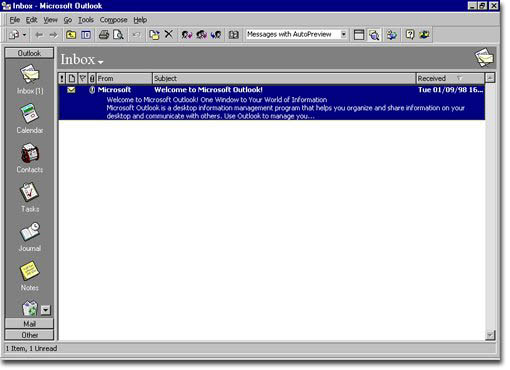
The main screen looks like the one in Figure 6. There are two main areas, or windows - the Outlook bar on the left, and the contents of the folder that's been selected on the right.
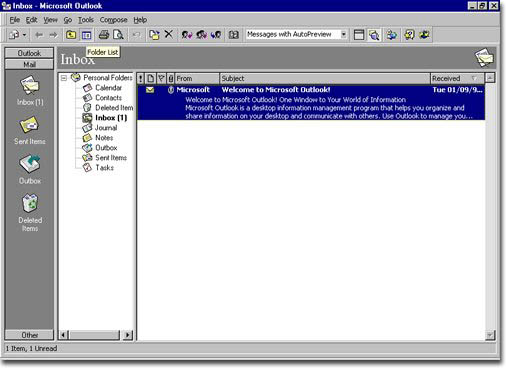
You can also have a folder list displayed, to activate this click on the icon as shown below. You will see a top level folder called "Personal Folders." If it's not expanded out, clicking on the "+" sign next to it. You should see several folders under the top one - the In Box, the Out Box, the Deleted Items, and the Sent Mail folders as well as others. The names are pretty descriptive of what you'll find in each one. For now, we're mainly interested in the In Box, so click on it to open it now.
If you're already logged on, Outlook may have already checked your mail on our server. If not, click on the Tools menu and choose Check for New Mail. If you have more than one type of service set up for Outlook, you will see Check for mail on. Select this and then you will see a list of choices, such as Microsoft Fax, Internet Mail, etc. If so, choose Internet Mail. The Deliver Now choice will send any messages in your Out Box, and also will check for new mail.
Viewing
Mail in the Inbox
If
you have mail, you'll see a screen like the one in Figure 7. If there are
several messages in the In Box, the new ones will be in bold type,
and ones you've already seen will be in normal type. There is a row of
very thin buttons above the actual messages with titles like From,
Subject, and Received, and pictures of a paper clip, an exclamation
mark, and an envelope. Clicking on these will sort the messages according
to their priority (the ! Symbol), message info (the envelope), attachments
(the paperclip), Sender's name, Subject, or date and time Received.
Outlook gives you an Auto Preview facility, which allows you to see the first few lines of the message. To open the message to see the remainder, double click on that message's line in the In Box (or which ever Box you're in). From here you can see info about who sent the message (in the grey area at the top) and the message itself.
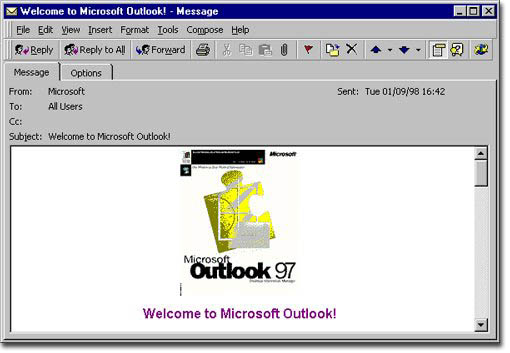
There
are a lot of options you have at this point. You can delete the message
(click the button that looks like an "X"), print the message (this
button looks like a printer), or move the message to a different folder
(the button that looks like a piece of paper going into a folder). Outlook
has a deleted messages folder that works in the same way as the Windows
recycle bin. if you right click on it you can remove deleted messages,
or you can open it and recover a message that you might have deleted by
accident.
You can set up a reply to the message by clicking on the Reply button, or forward the message by clicking on the Forward button.
| Back | © XHost Ltd 2000. All Rights Reserved |